Get started with OwlGuardian
OwlGuardian helps families protect vulnerable loved ones from phishing, fraud, and scam emails. The process is simple and takes about two minutes.
How it works
OwlGuardian is designed to be set up by a trusted family member (such as an adult child) on behalf of the person being protected (such as an aging parent). The Trusted Contact does the setup; the monitored user approves access and otherwise doesn't need to do anything technical.
- You (the Trusted Contact) install the OwlGuardian app from the App Store and create your account.
- You enter basic information about the person you want to protect — their name, relationship to you, email address, and phone number.
- You share an invitation link with them. OwlGuardian generates the link in the app; you send it to them yourself. They tap it, confirm that you're really you (by verifying a few personal details you provide), and connect their Gmail account.
- Monitoring begins. OwlGuardian scans incoming email for scams and phishing. When something suspicious is found, you receive an alert to review.
SMS consent
OwlGuardian sends text messages (SMS) for phone verification, security alerts about flagged emails, and account notifications. On the screen where they enter their phone number, each person sees an SMS consent checkbox. The checkbox is optional and unchecked by default — it does not gate the "Send code" button, which is enabled as soon as a valid phone number is entered. Tapping "Send code" requests a one-time, transactional verification text; checking the consent box additionally opts the person into ongoing OwlGuardian messages.
Trusted Contact's consent
When the Trusted Contact sets up monitoring, they enter their own phone number in the OwlGuardian iOS app. The SMS consent checkbox is shown on the same screen and is optional — they can tap "Send code" to request a verification text without checking it. (Alerts about scam emails in their loved one's inbox arrive in the app and by email, not by SMS.)
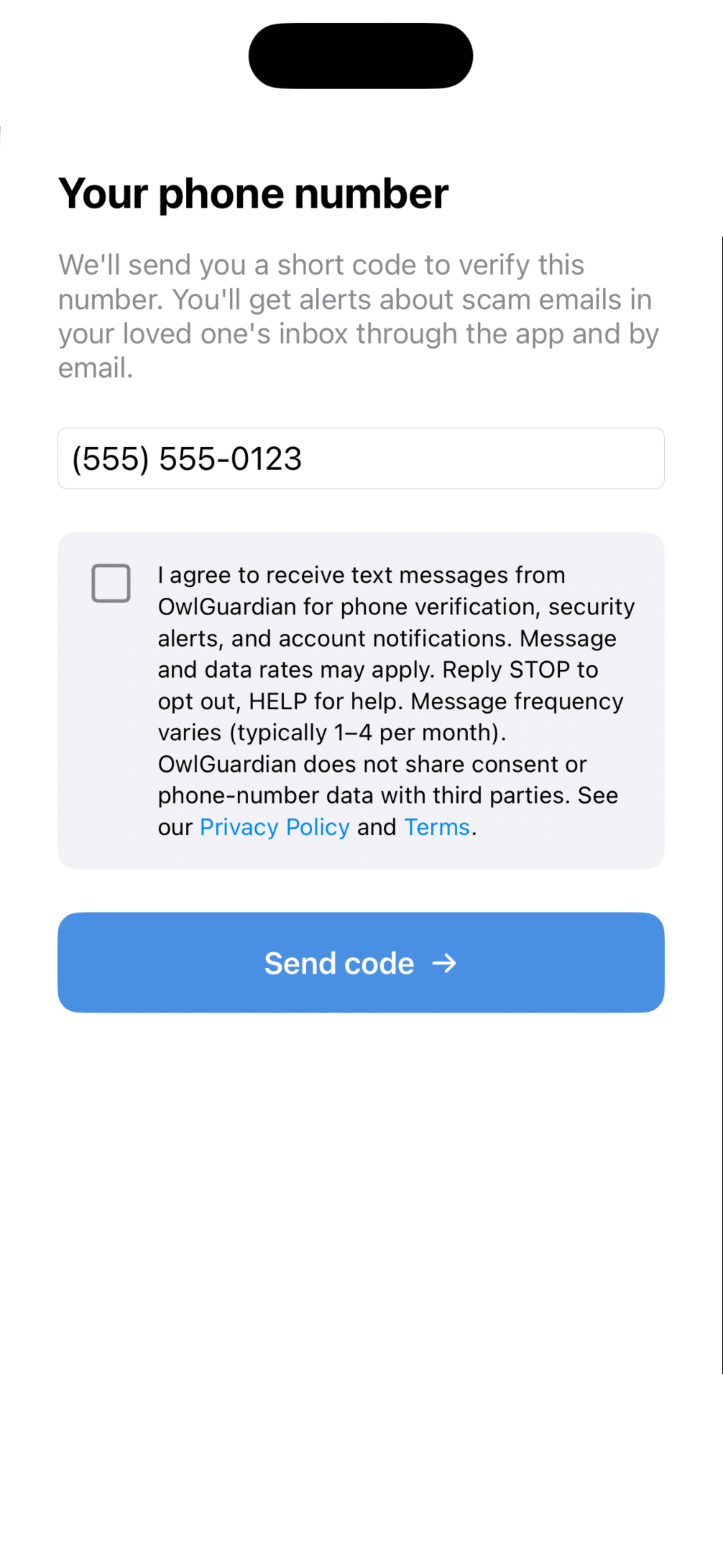
The Trusted Contact's phone-entry screen in the OwlGuardian iOS app. The consent box is optional and unchecked by default; "Send code" is enabled once a valid phone number is entered.
Monitored user's consent
The Trusted Contact shares an invitation link with the monitored user from their own device (OwlGuardian sends no SMS at this step). The monitored user opens it, confirms a few identity facts, then enters their own phone number. The same optional consent checkbox appears on this screen, unchecked by default; the "Send verification code" button is enabled once a valid phone number is entered, regardless of the checkbox.
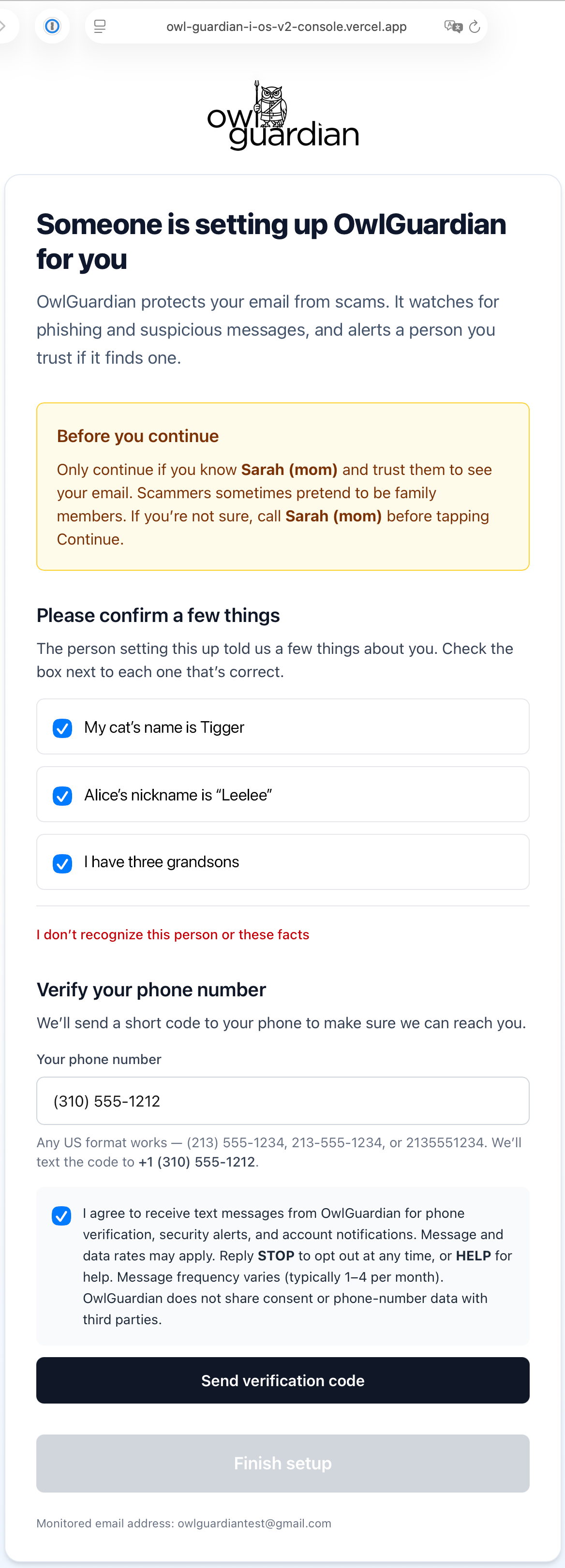
The monitored user's phone-verification screen. The consent box is optional and unchecked by default; "Send verification code" is enabled once a valid phone number is entered.
The verbatim consent language each person sees alongside the checkbox is identical:
Stopping or getting help
You can opt out at any time by replying STOP to any OwlGuardian text message. Replying STOP terminates SMS to that number and pauses any active monitoring of the associated email account. Reply HELP for assistance, or email support@owlguardian.net.
Privacy and data handling
OwlGuardian collects only the data needed to provide scam protection: Gmail OAuth tokens (encrypted), phone numbers (encrypted, used only for SMS and verification), and a handful of personal verification facts supplied by you. None of this data is sold, shared with advertisers, or used for marketing. Full details in our Privacy Policy and Terms and Conditions.
Questions?
Email support@owlguardian.net and we'll get back to you.